
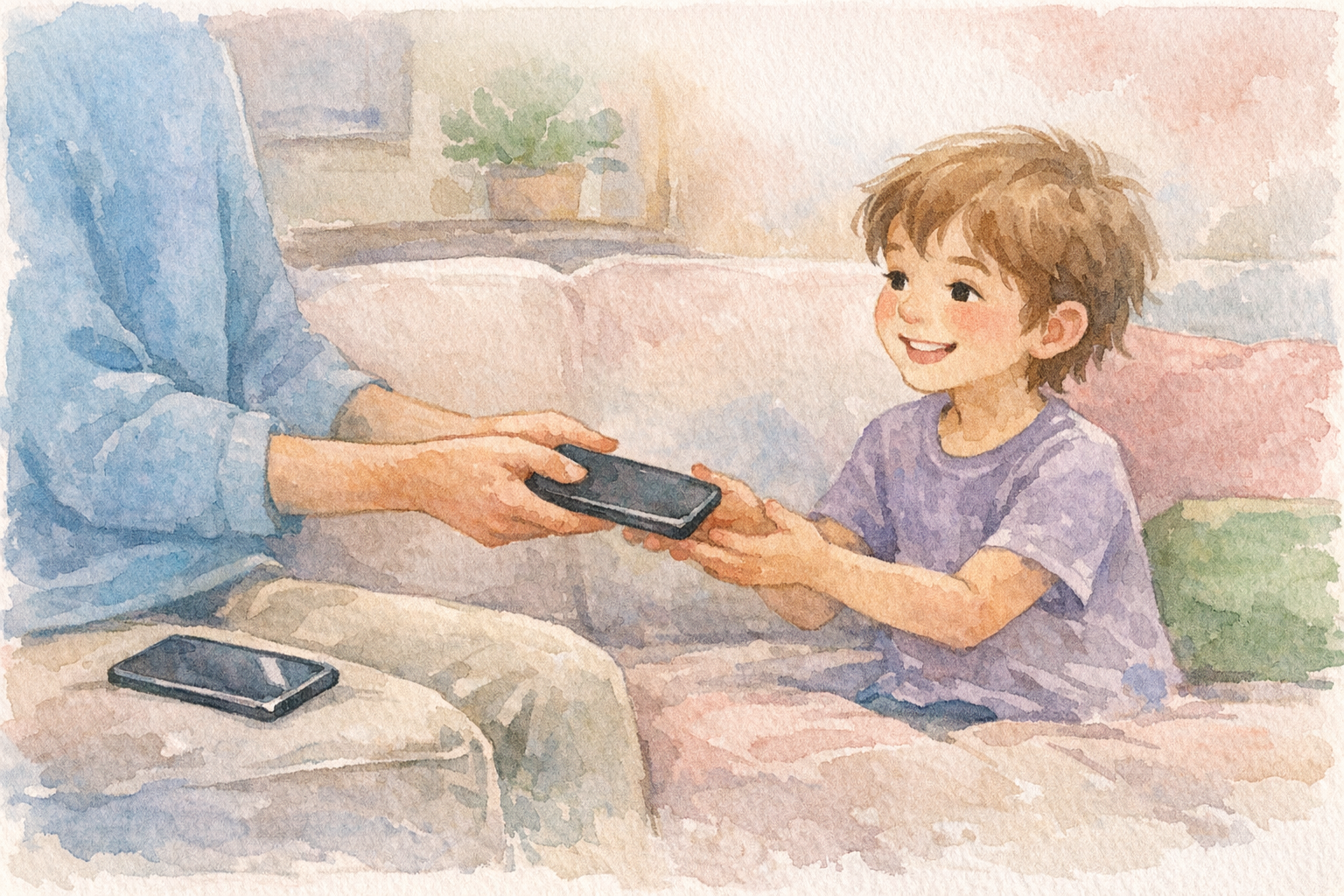
Passing Down an Old Phone to Your Kid: Wipe and Set It Up First
A new phone shows up during the holidays, and the old one lands in a drawer. Then a kid notices. Before long, that hand-me-down phone is on its way to a ten-year-old who’s been asking for one all year.
Passing down a phone is a smart, budget-friendly move. The device still works, it saves buying something new and it keeps one more gadget out of a landfill. But an old phone carries a lot of its previous owner with it: accounts, saved passwords, photos, messages and apps that were never meant for a child.
A little prep before you hand it over keeps your information private and gives your kid a fresh, age-appropriate start.
Back Up Everything First
Before you erase anything, make sure nothing you care about is stored only on the old phone.
Most phones offer a cloud backup in their settings, and your new phone may have already pulled most of your data across during setup. Still, check. Look for photos, videos, notes, voice memos and messages that might not have synced. Open your authenticator app if you use one, since codes for two-step sign-in often live on one device and need to be moved deliberately.
Check your messaging apps. Some chat apps keep their own backups separate from the phone’s main backup. Confirm your conversations made it to the new device.
Once you’re confident everything is safe, you’re ready to wipe the old phone. If you want a more thorough look at backups in general, SafetySurf’s guide to backing up your digital life covers the bigger picture.
Sign Out of Your Accounts
This step gets skipped more than any other, and it matters. Before resetting the phone, sign out of your main account, the one tied to the phone’s app store and cloud storage.
On many phones, this account is also linked to an anti-theft lock. If you reset the phone without signing out, the device may still ask for your password when your child tries to set it up. That leads to a frustrating evening, and it means your account is still connected to a phone you no longer use.
It’s also worth signing out of email, banking and shopping apps individually. A full reset should remove them, but signing out first gives you an extra layer of confidence.
Do a Full Factory Reset
A factory reset erases the phone and returns it to the state it was in when it left the store. It’s the cleanest way to hand over a device.
Look in the phone’s settings for an option to reset or erase all content and settings. The exact name depends on the brand and software version. The process usually takes a few minutes and will ask you to confirm more than once.
Remove the SIM card and any memory card. If your phone has a physical SIM or a removable memory card, take it out. Your number and any files on that card stay with you, not the phone.
After the reset, the phone should greet you with a fresh setup screen. That’s how you know it worked.
Set It Up With Your Kid’s Account
Now the phone becomes your child’s. Rather than signing in with your own account, create or use an account set up for your kid. Phone makers typically offer child accounts that connect to a parent’s account through a family-sharing or family-management feature.
A child account gives you tools that a regular account doesn’t, such as approving app downloads, setting screen time limits and seeing which apps get used. It also keeps your kid’s data separate from yours, which is cleaner for everyone as they grow up.
Take your time during setup. Do it together if your child is old enough to be interested. It’s a good chance to explain why certain settings are on.
Turn On the Right Controls
With the child account in place, review the parental controls and privacy settings. A few worth checking:
- App downloads. Require approval for new apps, at least at first.
- Screen time. Set daily limits or downtime hours, especially overnight.
- Content filters. Restrict mature content in the app store, web browser and video apps.
- Location sharing. Decide whether to share location within the family, and with whom.
For a more detailed walk-through of the options, SafetySurf has a practical guide to parental controls and family online safety. The right settings depend on your child’s age and maturity, and they’ll change over time.
Update the Software
Older phones sometimes sit for months without updates. Before your kid starts using it, check for software updates and install anything available. Updates often include security fixes that protect the device from known problems.
Also check whether the phone still receives updates at all. Phone makers eventually stop supporting older models. A phone that no longer gets security updates is less ideal for daily use, so it’s worth knowing where yours stands.
Agree on the Ground Rules
The technical setup is only half the job. The other half is a conversation about how the phone will be used.
Talk about where the phone stays at night, when it’s off-limits, what to do if something online feels wrong and which apps are okay. Write the rules down together so there’s no confusion later. If this is your child’s first phone, SafetySurf’s piece on ground rules for a first phone offers a good starting checklist.
The same mindset works for other hand-me-down gadgets, too. Families getting ready for the season might also want to look at setting up a new game console for kids, which involves many of the same steps.
A Fresh Start for an Old Phone
A hand-me-down phone can be a wonderful first device. It’s familiar, it’s affordable and it gives a kid a chance to learn responsibility without a brand-new screen on the line.
The hour you spend backing up, wiping and setting it up properly protects your information and gives your child a phone that’s truly theirs. That’s a better gift than any shiny new box, and it starts their digital life on the right foot.


