A Lighter Home Screen: Keeping Only the Apps You Actually Use
Pick up your phone and look at the home screen. How many of those apps did you open today? This week? There’s probably a weather app you never check, a game you stopped playing in the spring, three shopping apps, a photo editor you used once and a folder labeled “Other” that’s become a junk drawer.
Most of us don’t design our home screens. They just happen. Every new app lands wherever there’s an empty spot, and over time the screen fills with things we don’t really use.
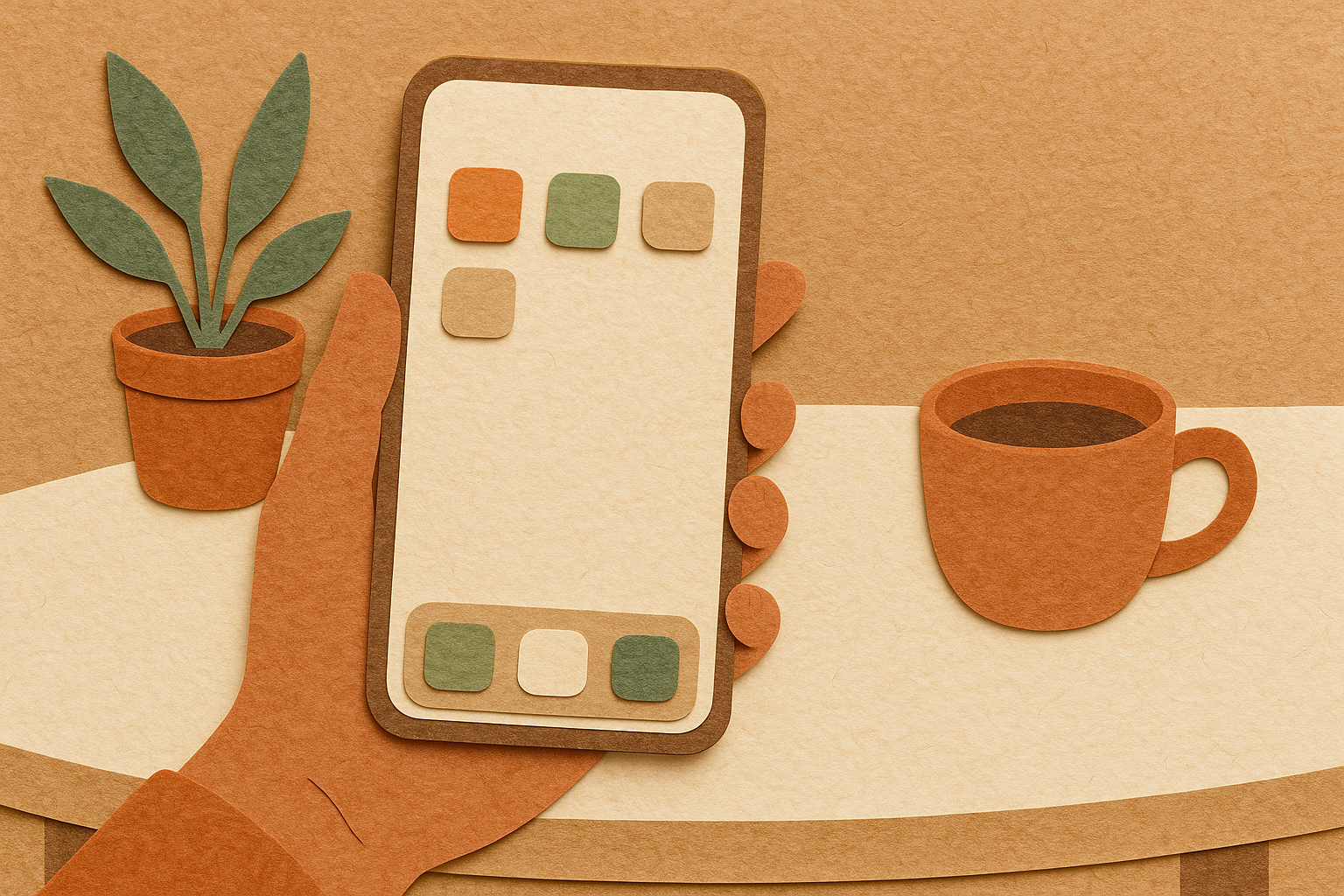
A lighter home screen is one of the simplest ways to make your phone calmer and more useful. You don’t need to go to extremes. A minimalist home screen isn’t about owning fewer apps for the sake of it. It’s about putting the tools you rely on within easy reach and moving everything else a swipe away. It takes about twenty minutes, and you’ll feel the difference every time you pick up your phone.
Why the Home Screen Matters
Your home screen is the first thing you see dozens of times a day. Whatever’s there gets your attention. A bright icon with a red notification badge practically begs to be tapped.
When the home screen is crowded, it’s easy to open apps out of habit rather than need. You pick up the phone to check the time and end up scrolling social media for fifteen minutes.
A lighter home screen changes that. When only the apps you really need are front and center, you’re more likely to do what you meant to do and put the phone down.
Step One: Take Stock
Start by looking at what’s on your phone. Most phones have a screen time or digital wellbeing feature that shows which apps you use the most. Check it for the past week.
You’ll probably find that a small number of apps get most of your use. Messages, phone, camera, maps, email, a music app, maybe one or two others. Everything else is used rarely or not at all.
Make a mental list of the apps you truly use and need every day. That’s your new home screen.
Step Two: Delete What You Don’t Need
Now go through your apps and delete the ones you don’t use. This is the most satisfying part.
Ask yourself a simple question for each one: have I opened this in the last month? If not, it can probably go. You can always download it again later if you need it.
Watch for apps that came with the phone. Some can’t be deleted, but many can be hidden or removed from the home screen.
Be extra ruthless with shopping and game apps. They’re designed to pull you back in, and they’re easy to reinstall when you really need them.
If you’re worried about losing information, check whether the app stores your data in an account. Most do, so deleting the app doesn’t delete your account.
Step Three: Rebuild the Home Screen
With the extra apps gone, it’s time to build a home screen on purpose.
Keep it to one screen. Ideally, everything you use daily fits on a single home screen, with room to spare.
Put the essentials in the dock. The row at the bottom stays the same on every screen. Put your four most-used apps there.
Leave empty space. It sounds strange, but a home screen with some blank space feels calmer. You don’t have to fill every slot.
Move the rest to the app library or a second screen. Apps you use occasionally can live out of sight. You can still find them by searching.
Choose a simple wallpaper, too. A busy photo behind a pile of icons makes everything harder to see. A plain color or a soft, simple image lets the few apps you keep stand out.
Some people go even further, keeping only a few tools on the home screen and opening everything else by search. It’s worth trying for a week to see if you like it.
Step Four: Tame the Notifications
A lighter home screen works best with fewer notifications. Those red badges and buzzes are what pull you back into apps you didn’t mean to open.
Go through your notification settings and turn off alerts for anything that isn’t important. Keep messages from people, calendar reminders and anything urgent. Turn off promotional alerts, news alerts you don’t need and app nudges.
Our article on breaking free from notification overload has more on taking back your attention.
Step Five: Think About the Kids’ Devices
If your kids have phones or tablets, a lighter home screen can help them too. Kids are especially drawn to bright icons and games.
Sit beside them and talk about which apps they really use and enjoy. Let them help decide what stays on the home screen. Moving games to a second screen or folder can reduce the urge to open them, without banning them entirely.
Our guide to digital minimalism for kids has more ideas for keeping kids’ devices simple.
Keep It Light Over Time
Home screens tend to fill up again. New apps get downloaded, and suddenly the clutter is back.
Make a simple habit: whenever you download a new app, decide right away where it belongs. If it’s not a daily tool, keep it off the home screen.
Every few months, do a quick review. Delete apps you haven’t used, rearrange what’s left and enjoy the clean screen again. It takes just a few minutes once the main cleanup is done.
A Phone That Works for You
A lighter home screen won’t change your life on its own. But it’s a small, daily reminder that your phone is a tool, not a slot machine.
When you open your phone and see only what you need, it’s easier to use it with purpose. Check the weather, send the message, take the photo, then put it down. The rest of the world, and the people in it, will still be there when you look up.